






























Three.js – JS 3D Library: The Complete Guide to Web-Based 3D Experiences

Have you ever visited a website and been completely mesmerized by an interactive 3D animation that responded to your mouse movements? Or perhaps you’ve played a browser-based game with stunning graphics that made you wonder, “How is this even possible in a web browser?” The answer, more often than not, is Three.js. This powerful JavaScript…
Have you ever visited a website and been completely mesmerized by an interactive 3D animation that responded to your mouse movements? Or perhaps you’ve played a browser-based game with stunning graphics that made you wonder, “How is this even possible in a web browser?” The answer, more often than not, is Three.js. This powerful JavaScript library has revolutionized how developers create 3D experiences on the web, making what was once the exclusive domain of game engines and specialized software accessible to anyone with a text editor and a vision. When you browse through impressive three js examples online, you’re witnessing the culmination of years of development in web standards and creative coding. The library’s versatility shines through in everything from simple product visualizations to complex three js games that run smoothly in modern browsers. Getting started is remarkably straightforward—you can install it via three js npm with a simple command, making it accessible to developers familiar with modern JavaScript workflows.
Donation
Coffee to stay awake, thank you very much for your contribution to keeping our website online.
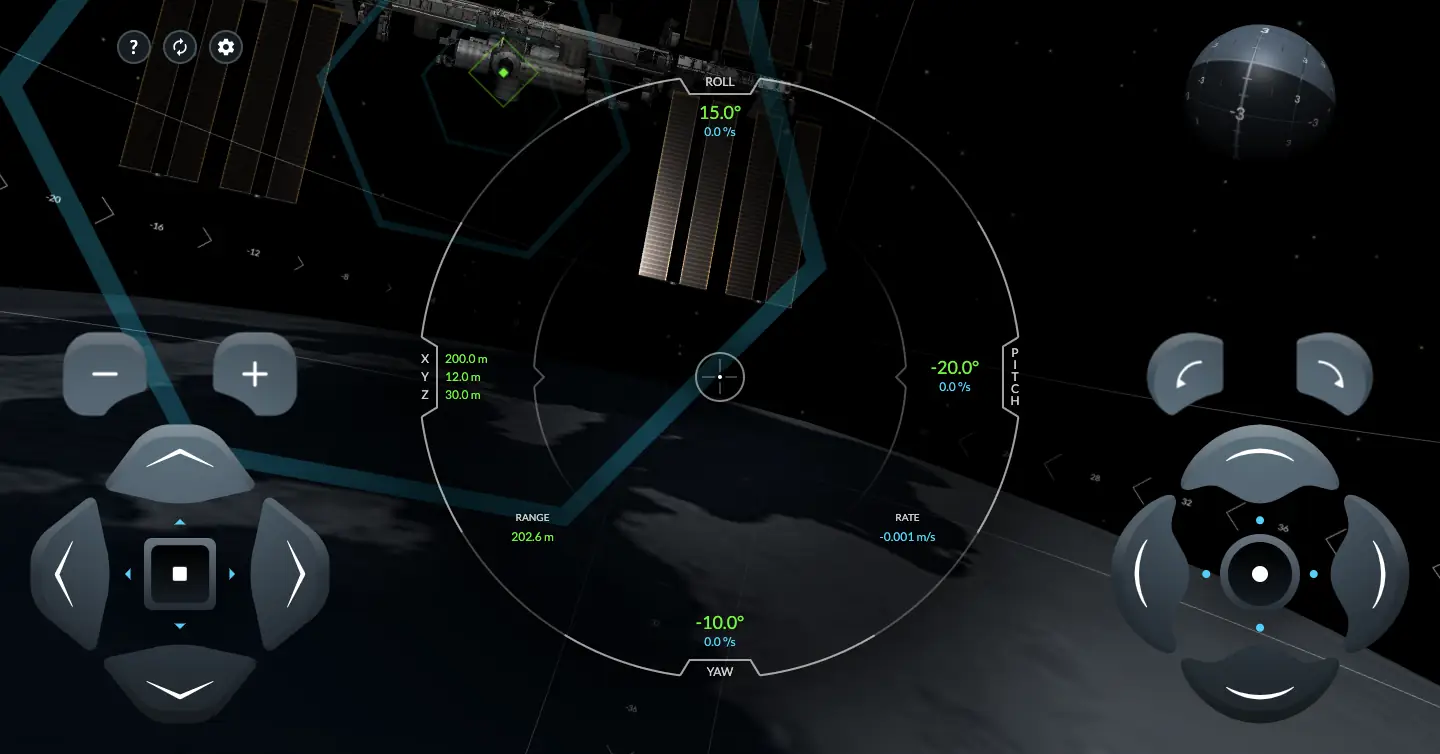
Image Credit: threejs.org
The true power of Three.js lies in its abstraction of WebGL’s complexity, providing a intuitive API for creating 3D scenes. Fundamental concepts like the three js box3 class, which represents an axis-aligned bounding box, provide essential utilities for collision detection and spatial calculations that are crucial for interactive experiences. For those who prefer a visual workflow, the three js editor offers a browser-based environment where you can drag, drop, and manipulate 3D objects without writing code, perfect for prototyping and learning. The vibrant open-source community centered around the three js github repository ensures continuous improvement and a wealth of shared knowledge. At the heart of every Three.js scene is the three js camera, which determines the user’s perspective and view of the 3D world. Understanding how to configure and manipulate this camera is fundamental to creating engaging experiences, whether you’re building an architectural walkthrough or an immersive game.
Getting Started: Your First Steps into 3D Development
Embarking on your Three.js journey might seem daunting, but the library’s design philosophy emphasizes accessibility. The quickest way to begin is by including the library via CDN in an HTML file, though most serious developers prefer installing through three js npm for better dependency management and build process integration. A basic Three.js application requires just three core components: a scene, a camera, and a renderer. The scene acts as a container for all your 3D objects, lights, and cameras. The three js camera (typically a PerspectiveCamera) defines what the user sees, mimicking how human vision works with perspective. The renderer takes your scene and camera and draws them to an HTML canvas element.
Your first project might involve creating a simple rotating cube—the “Hello World” of 3D programming. This exercise introduces you to essential concepts like geometries (the shape of objects), materials (their visual appearance), and meshes (the combination of geometry and material). As you progress, you’ll explore the extensive collection of three js examples available in the official documentation and on the three js github repository. These examples range from basic shapes to advanced particle systems and physics simulations, providing both inspiration and practical code snippets you can adapt for your projects. Starting simple and gradually increasing complexity is the most effective approach to mastering this powerful library.
Core Concepts: Understanding the Three.js Architecture
To wield Three.js effectively, you need to understand its fundamental architecture. At the highest level, everything exists within a Scene—think of it as a virtual stage where you place all your 3D objects. The next critical component is the three js camera, which acts as the viewer’s eye into this virtual world. Three.js offers several camera types, with PerspectiveCamera being the most common as it mimics real-world perspective. The Renderer is the engine that takes the scene and camera data and converts it into pixels on your screen, leveraging WebGL for hardware-accelerated performance.
Objects in a Three.js scene are typically Meshes, which combine a Geometry (the vertex data defining the shape) and a Material (defining how the surface appears—color, texture, shininess, etc.). Understanding spatial transformations is crucial: every object has position, rotation, and scale properties that determine where and how it appears in the scene. For managing object relationships and complex animations, Three.js uses a scene graph structure where objects can be parented to other objects, creating hierarchical relationships. Utilities like three js box3 provide mathematical structures for working with 3D space, enabling features like bounding volume calculations, frustum culling, and collision detection that are essential for performance and interactivity in sophisticated three js games.
Lighting and Materials: Bringing Your Scenes to Life
Creating compelling 3D visuals in Three.js goes beyond just placing objects in a scene—it requires thoughtful use of lighting and materials. Three.js offers several light types that mimic real-world lighting scenarios. AmbientLight provides base illumination to all objects equally, similar to an overcast day. DirectionalLight simulates sunlight, casting parallel rays from a specific direction. PointLight acts like a light bulb, radiating light in all directions from a single point. SpotLight creates a cone of light, perfect for highlighting specific areas or creating dramatic effects. The choice and combination of lights dramatically affect the mood and realism of your scene.
Materials define how objects react to these light sources. The basic MeshBasicMaterial isn’t affected by lights—it simply renders objects with a flat color or texture. For more realism, MeshLambertMaterial and MeshPhongMaterial respond to lighting, with Phong offering specular highlights for shinier surfaces. More advanced materials like MeshStandardMaterial and MeshPhysicalModel support physically-based rendering (PBR) principles, creating highly realistic surfaces that respond accurately to different lighting environments. When examining sophisticated three js examples with realistic materials, you’re likely seeing these PBR materials in action. The three js editor provides an excellent environment for experimenting with different material and lighting combinations visually before implementing them in code.
Animation and Interaction: Creating Dynamic Experiences
Static 3D scenes can be impressive, but the true magic of Three.js reveals itself when objects move and respond to user input. The library provides multiple approaches to animation, from simple rotations to complex skeletal animations. The most fundamental method involves updating object properties (position, rotation, scale) inside a render loop—a function that runs repeatedly, typically 60 times per second for smooth animation. For more complex animations, Three.js offers various animation systems, including keyframe tracks and morph targets for vertex-level animations.
Creating interactive experiences requires handling user input and implementing responsive behaviors. Raycasting is the primary technique for detecting when users click or hover over 3D objects, enabling interfaces where users can select and manipulate elements in the scene. For three js games and applications requiring spatial queries, utilities like three js box3 become invaluable for collision detection between objects. Camera controls are another crucial aspect of interaction—libraries like OrbitControls allow users to rotate, zoom, and pan around the scene with intuitive mouse/touch gestures. When examining the source code of interactive three js examples on the official three js github repository, pay close attention to how they structure their animation loops and implement user interaction to create polished, responsive experiences.
Advanced Techniques: Taking Your Skills to the Next Level
Once you’ve mastered the basics of Three.js, a world of advanced techniques awaits. Shader programming unlocks the full potential of real-time graphics, allowing you to write custom programs that run directly on the GPU for effects that would be impossible with standard materials. Post-processing enables cinematic visual effects like bloom, depth of field, and color grading through a pipeline that applies filters to the entire rendered scene. Environment mapping and image-based lighting can transform a simple scene into a photorealistic environment by capturing and utilizing real-world lighting information.
For large-scale applications, performance optimization becomes critical. Techniques like Level of Detail (LOD) systems display simpler models for distant objects, while frustum culling avoids rendering objects outside the three js camera‘s view. For complex scenes with many objects, implementing a spatial partitioning structure (like an octree) with help from three js box3 calculations can dramatically improve rendering performance. Loading and managing 3D assets efficiently is another advanced topic—the library supports various formats (GLTF being the modern standard) and provides loading managers for handling multiple assets. The most impressive three js examples and three js games typically combine several of these advanced techniques to create experiences that push the boundaries of what’s possible in a web browser.
Workflow and Tools: Streamlining Your Development Process
An efficient development workflow can significantly boost your productivity when working with Three.js. While you can certainly write everything from scratch in a code editor, leveraging the right tools can enhance your creative process. The official three js editor provides a visual interface for composing scenes, applying materials, and setting up basic animations without coding—perfect for prototyping and learning spatial relationships. For code-centric development, installing Three.js via three js npm integrates seamlessly with modern JavaScript build tools like Webpack or Vite, enabling features like hot module replacement for faster iteration.
When it comes to 3D modeling, most developers create assets in specialized software like Blender (free) or Maya, then export them in formats that Three.js can import. The GLTF format has emerged as the standard for the web, offering compact file sizes and support for animations, materials, and complex scenes. Debugging Three.js applications can be challenging, but browser developer tools now include specific WebGL inspectors that help you analyze rendering performance and identify issues. The active community on the official three js github repository is an invaluable resource when you encounter challenges, with thousands of existing issues and solutions that might address your specific problem. Establishing a solid workflow early will make your journey into 3D web development much more enjoyable and productive.
Real-World Applications: Three.js in Production
Three.js has moved far beyond experimental projects to power serious applications across various industries. E-commerce websites use it for interactive product configurators that allow customers to customize and view products in 3D before purchasing. Architectural firms create immersive virtual tours of buildings not yet constructed. Educational platforms leverage Three.js for interactive scientific visualizations that make complex concepts tangible. Data visualization companies use it to create stunning 3D charts and graphs that reveal patterns invisible in traditional 2D representations.
The gaming industry has particularly embraced Three.js for browser-based three js games that reach audiences without requiring downloads or installations. From simple puzzle games to ambitious multiplayer experiences, the library’s performance and flexibility continue to impress. Museums and cultural institutions use Three.js to create digital exhibitions and artifact viewers that provide access to precious collections worldwide. Even the film industry utilizes Three.js for pre-visualization and virtual production. Browsing through the extensive collection of three js examples on showcase websites reveals the staggering diversity of applications, each demonstrating how 3D on the web can solve real problems and create unique experiences that weren’t possible just a few years ago.
Donation
Coffee to stay awake, thank you very much for your contribution to keeping our website online.
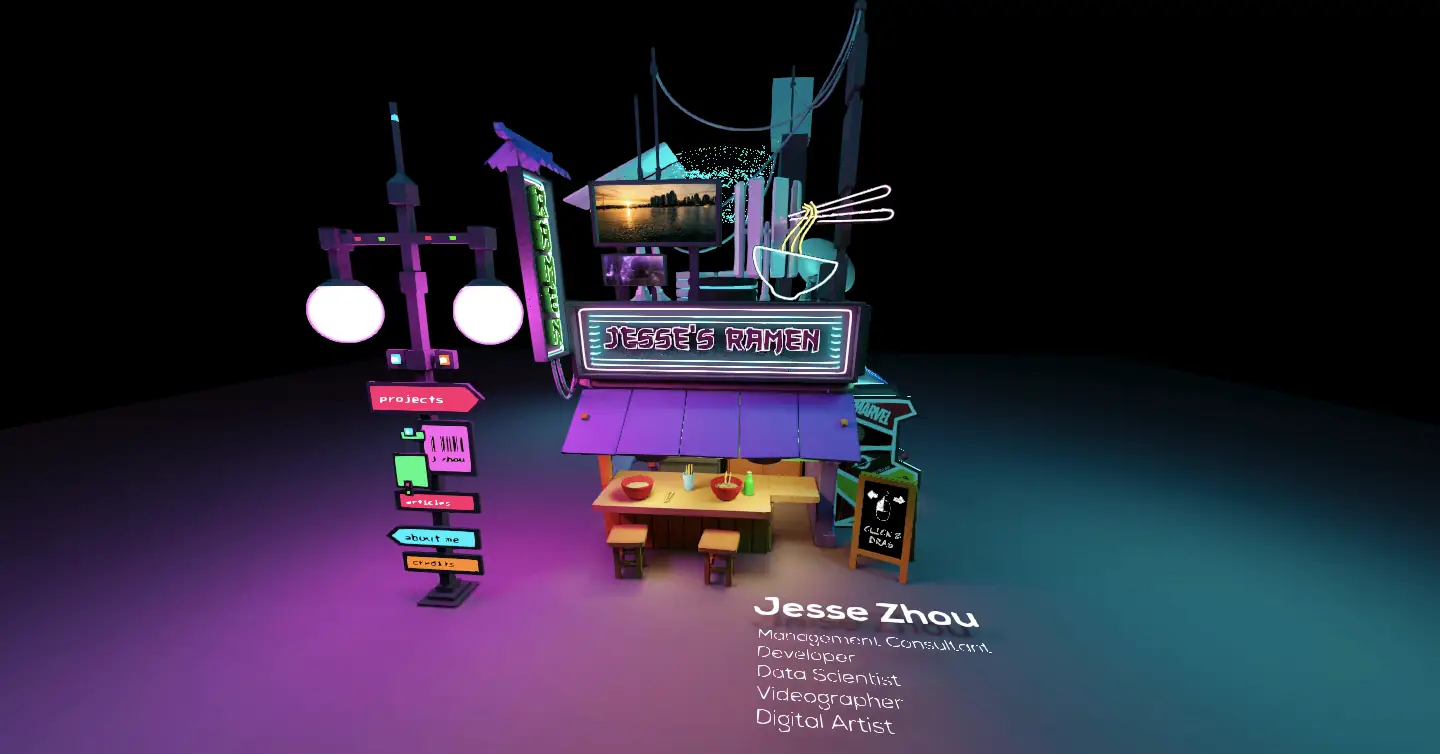
Image Credit: threejs.org
Frequently Asked Questions About Three.js
Q: Do I need to be a 3D artist or mathematician to use Three.js?
A> Not at all! While knowledge of 3D concepts and linear algebra can be helpful, Three.js is designed to be accessible to web developers with JavaScript experience. You can create impressive projects by starting with the basic three js examples and gradually learning more advanced concepts as needed.
Q: How does Three.js performance compare to native applications?
A> Modern browsers with hardware-accelerated WebGL provide excellent performance for many 3D applications. While native applications still have an edge for extremely complex scenes, Three.js is more than capable of powering sophisticated three js games and visualizations, especially when optimized properly.
Q: What’s the best way to install Three.js for a new project?
A> For most projects, installing via three js npm is recommended as it simplifies dependency management and enables tree-shaking to include only the parts of the library you actually use. The command is simple: npm install three.
Q: When would I use the three js box3 class?
A> The three js box3 class represents a 3D bounding box and is incredibly useful for collision detection, visibility determination, spatial queries, and calculating object dimensions. It’s essential for game development and any application requiring spatial awareness.
Q: Is the three js editor suitable for production work?
A> The three js editor is excellent for prototyping, learning, and simple projects. For complex production applications, most developers prefer coding directly while potentially using the editor for specific tasks like material setup or initial scene composition.
What type of Three.js project are you most excited to create? Are you interested in building interactive data visualizations, browser-based games, product configurators, or something completely different? Share your ideas and questions in the comments below!